

How to add a travel story?
The travel story allows you to tell about your stay and enhance your trip with text, memories, tips, or practical information.
A story is always associated with an existing trip.
Access the travel story
You can open the travel story from your list of trips or from the detailed page of a trip.
From your list of trips
Open your travel list.
Identify the trip for which you want to write a story.
Click on the Write a travel story button.

From the trip page
Open the relevant trip.
Click on the Travel Story button.

Choose a writing method
When you open the story for the first time, SityTrip offers you two options:
- Writing Assistance: start with a predefined structure to help you write your story.
- Free text : opens a blank page with no structure or suggestions.
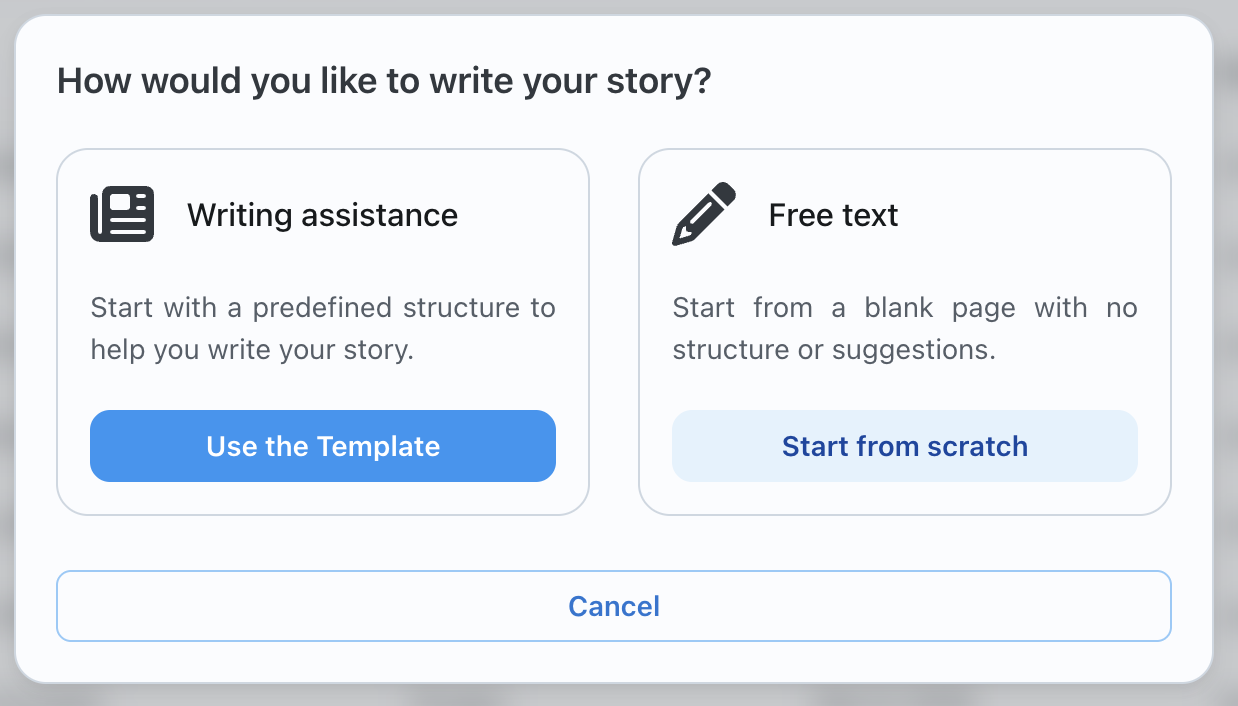
Use the template
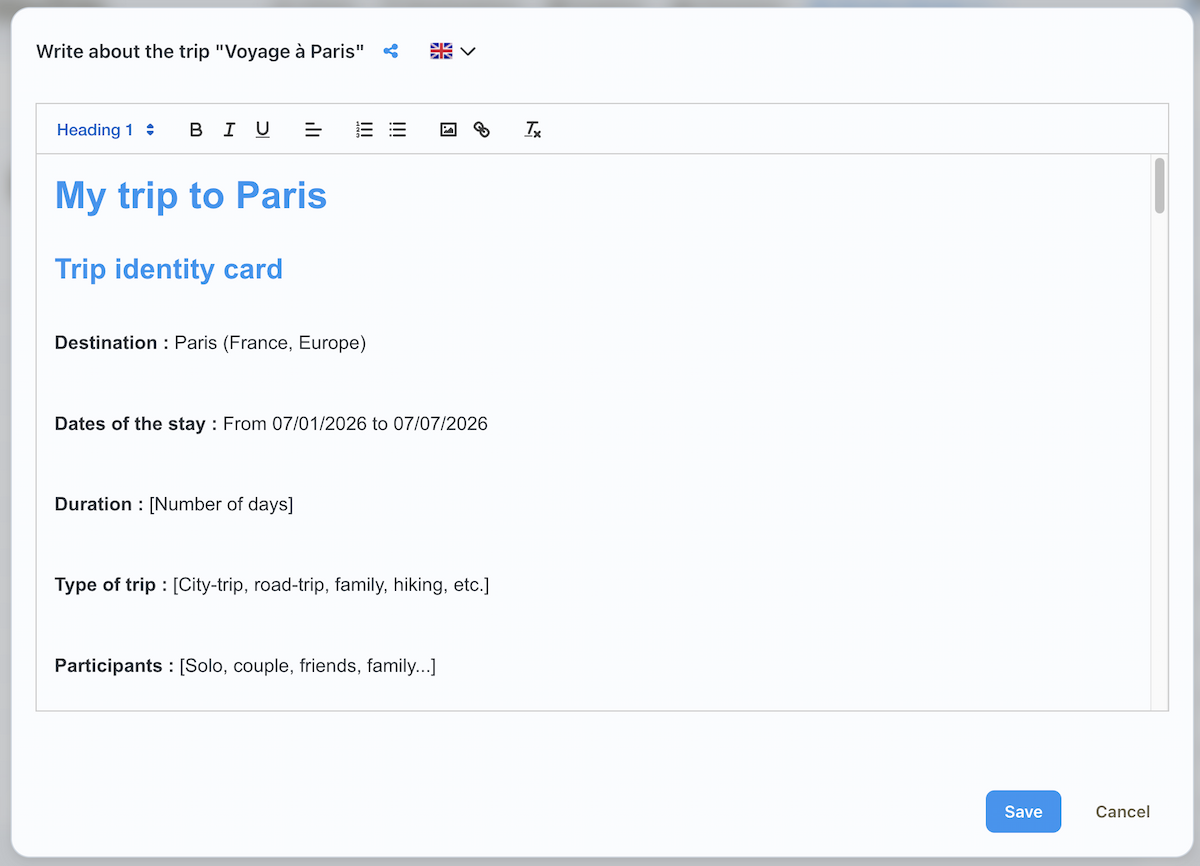
The Writing Assistance option allows you to automatically generate an initial structure for your story.

Click on Use the Template.
Please indicate the dates of your trip.
Select the must-see places you have visited.
Choose whether you want to include the description of the places.
Click on Next to generate the content.
The generated template serves as a starting point. You can then modify the text, add your own memories, remove sections, insert images, or adjust the formatting.
Start from scratch
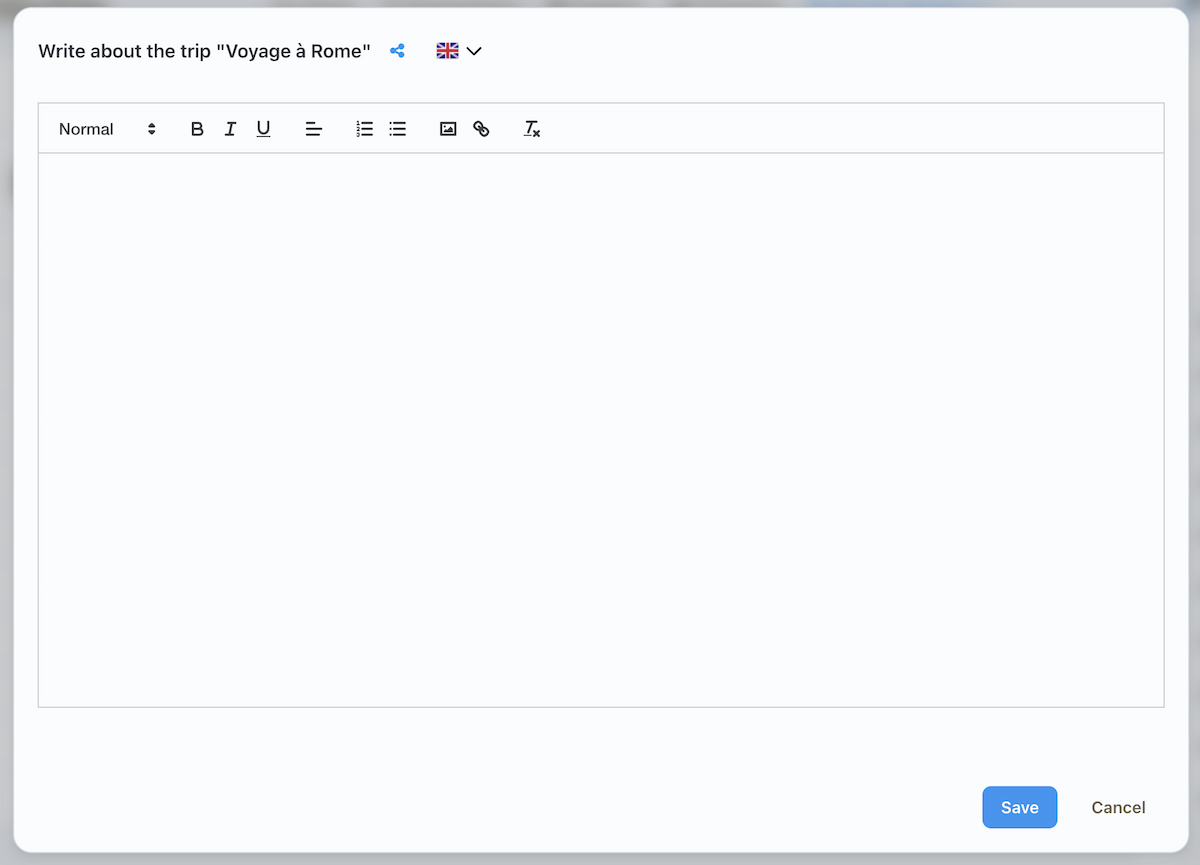
The Free text option allows you to start from a blank page.
Click on Start from scratch.
Freely write your story in the editor.
This option is useful if you already have a clear idea of the content you want to write.
Use the editor
The editor allows you to format your story.
You can particularly add titles, make text bold or italic, create lists, insert links, or add images.
When your story is finished, click on Save.