

How to change the text-to-speech settings?
Text-to-speech allows you to listen to certain texts from SityTrip instead of reading them on the screen.
You can modify the playback settings to adjust the voice, speed, or pitch according to your preferences.
Open the playback settings
Open a sheet or a page containing text compatible with voice synthesis.
Click on the information or settings icon associated with the audio playback button.
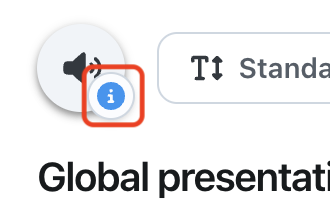
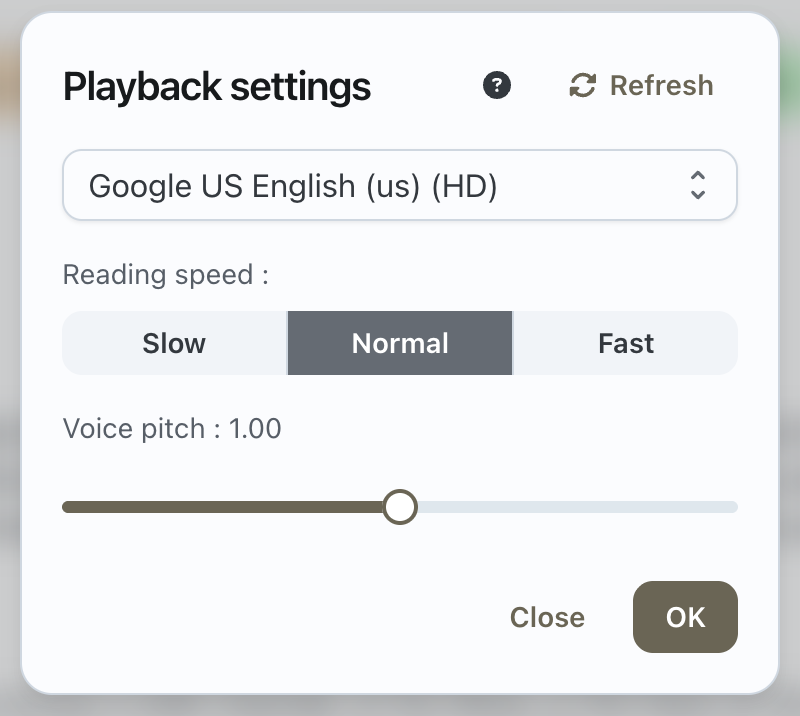
The Playback Settings window opens.
Choose a voice
In the settings window, use the dropdown list to choose the desired voice.

The list can contain multiple voices, depending on the languages and voices available on your device or browser.
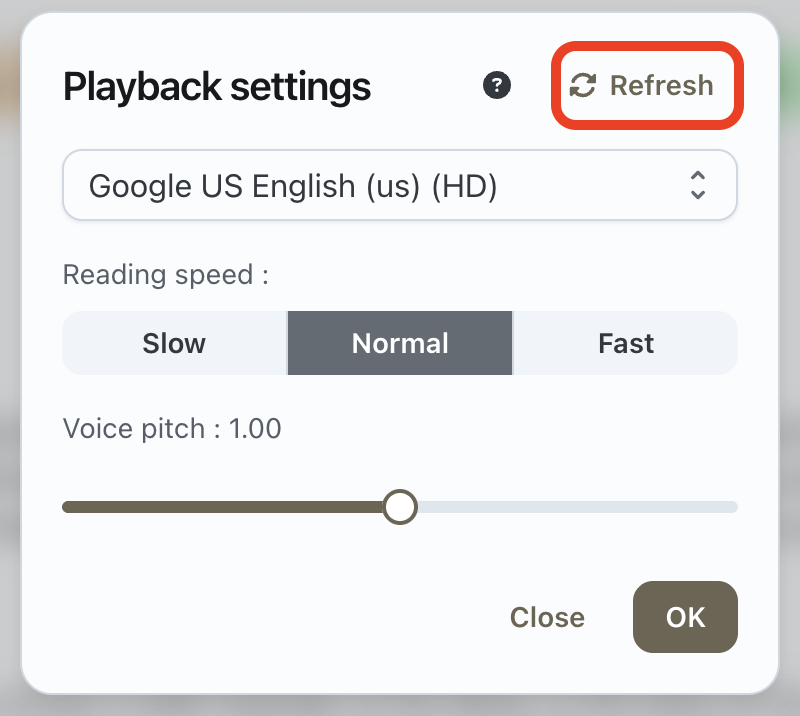
If the list is not displaying correctly or if you have just changed the language, click on Refresh to reload the available voices.
Change the playback speed
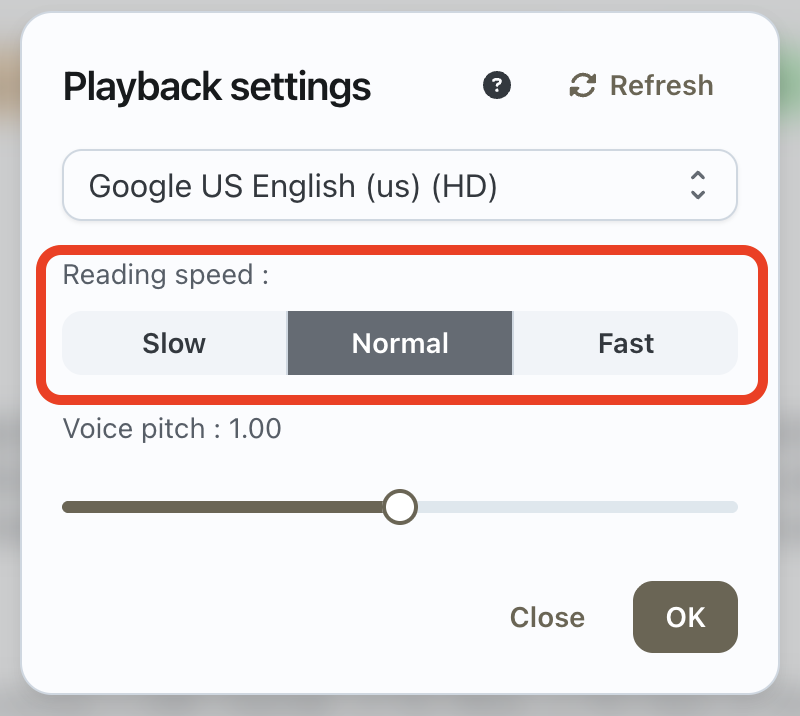
You can choose the reading speed from the options provided:
- Slow : for a more relaxed reading ;
- Normal : for standard reading;
- Fast : for quicker reading.
Select the speed that suits you best.
Change the pitch of the voice
The Voice Height setting allows you to adjust the tone of the voice.
Move the slider left or right to adjust the reading height.

Save your settings
When you are satisfied with the settings, click on OK to apply them.
You can also click on Close to exit the window without applying any changes.